Worked Example
Port OpenZeppelin's Defender governance alert to Chainlink CRE, then simulate, deploy, and verify it on Sepolia
This is Part 2. Mapping Your Defender Setup maps each kind of Defender setup to CRE and explains what changes; this part puts that into practice with one complete port you can run yourself.
What You'll Build
Let's follow one event from a Governor contract to a notification. The starting point is OpenZeppelin's original Defender governance alert template, a Monitor plus an Action. The CRE example is a separate project that ports the template's five event handlers; this walkthrough follows ProposalCreated, then shows how to check the result.
The goal is to preserve the notification's content while changing how the event reaches the code and how the message is delivered. Steps 1 and 2 set up the example; Steps 3 to 5 replay an existing Sepolia receipt through local simulation, against your own Governor. Steps 6 to 9 deploy the same workflow and watch a real execution.
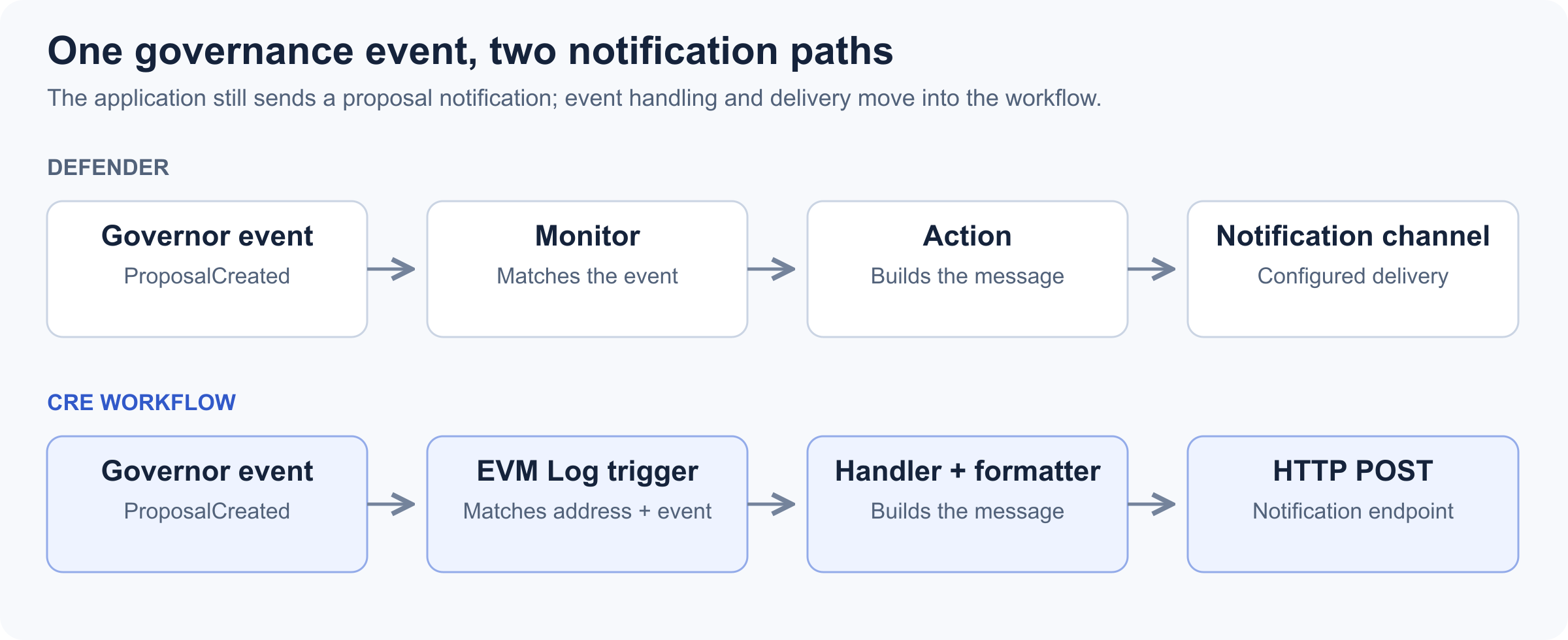
Both designs respond to ProposalCreated. With CRE, the workflow handles the event, formats the message and sends it to the notification endpoint.
By the end, you will have replayed a real proposal through local simulation, deployed the workflow, watched a real execution deliver a notification, and confirmed that a failed delivery shows up where you can see it.
Concepts From Part 1 You'll Use
This walkthrough relies on a few ideas from Part 1. If any of them is new, read that section first:
- Triggers and handlers: a trigger starts the workflow and a handler runs your logic (section 03).
- The EVM Log trigger and generated bindings: how a Monitor's event condition becomes a filter plus handler code (sections 06 and 08).
- HTTP delivery and idempotency keys: you own delivery now, including duplicates and failures (section 05).
- Determinism and single-node simulation: why a passing local run does not prove the DON will agree (section 08).
- No Receiver needed here: this workflow only sends notifications. For onchain writes, see section 07.
Before You Start
Tested with CRE CLI 1.34.0, @chainlink/cre-sdk 1.19.1, and Bun 1.4.0. Bun 1.4 or later is required: on Bun 1.3.x, bun install --frozen-lockfile in Step 1 fails with UnknownLockfileVersion. Check with bun --version. Have these ready:
- The example project,
gov-alertin OpenZeppelin/defender-to-cre-examples, plus Bun 1.4 or later, Foundry (for the fixture and Step 7'scast send), and the CRE CLI, logged in. - A Sepolia RPC endpoint.
- A Governor on Sepolia that emits the standard
ProposalCreatedevent, and an existing transaction from it to replay. Your own is best, because Step 7 needs you to create a new proposal on it. The repo'sfixturefolder deploys one with Foundry. - An HTTP endpoint you control that accepts a POST, lets you read the incoming headers and body, and can be switched to return a non-2xx status (Step 8), plus a second URL that returns non-2xx (Step 5).
jq, to read a transaction receipt in Step 3.- For Steps 6 to 9 only: CRE deploy access (
cre account accessshows your status) and an enabled private registry, the Chainlink-hosted service that stores workflow registrations, which you can confirm withcre registry list. - For Steps 6 to 9 only: a test wallet with Sepolia ETH, able to meet your Governor's proposal requirements.
How the Port Maps to the Defender Template
The Defender template connects a Monitor to an Action that formats governance notifications. The CRE port separates event handling, message formatting and HTTP delivery:
| Responsibility | Defender template | CRE example |
|---|---|---|
| Select Governor events | Monitor event conditions | Generated event bindings and trigger registrations |
| Decode and route a match | Action inspects the Monitor payload | Typed event handler in workflow.ts |
| Format the notification | Message logic inside the Action | Pure formatter in messages.ts |
| Deliver the message | Configured notification channel | HTTP request from the workflow |
The port preserves the five event types and notification format, including the transaction link. It replaces runtime-dependent number formatting (Part 1, section 08) and handles each event separately, so two matching events in one transaction arrive as two executions where Defender delivered one payload (Part 1, section 06). Part 1, section 05, covers HTTP delivery. In the code, onProposalCreated passes the decoded fields to handleEvent, which adds the transaction hash, calls formatGovernanceAlert, and forwards the message to sendNotification.
Walkthrough: Simulate, Deploy, and Verify the Governance Alert
Each step below is collapsible. Open a step to see its commands and what to check before moving on. Command names and flags follow CRE CLI 1.34.0; if you install a newer version, check --help on each.
Step 1: Prepare the Example
Clone OpenZeppelin/defender-to-cre-examples and move into its gov-alert folder:
git clone --branch v1.0.2 https://github.com/OpenZeppelin/defender-to-cre-examples.git
cd defender-to-cre-examples/gov-alert
All commands in Steps 1–9 run from the project root, defender-to-cre-examples/gov-alert/. The workflow folder inside it is also named gov-alert/. The relevant files are:
project.yaml                         # Sepolia RPC settings
contracts/
  package.json                       # Dependencies of the generated bindings
  bun.lock
  evm/ts/generated/
    GovernorEvents.ts                # Event decoding and trigger bindings
gov-alert/
  workflow.yaml                      # Workflow path and named settings
  main.ts                            # Entry point; starts the CRE runner
  workflow.ts                        # Triggers, handlers and HTTP delivery
  messages.ts                        # Notification formatting
  package.json                       # Pinned dependencies and test scripts
  bun.lock
The example includes the generated binding, produced from an events-only ABI, which keeps it clear of a CRE CLI 1.34.0 limitation: bindings generated from a contract with overloaded functions, such as Governor, do not compile (Part 1, section 08).
The bindings are their own package, so install in both folders. Installing only inside gov-alert leaves the binding's imports unresolved and the typecheck fails:
(cd contracts && bun install --frozen-lockfile)
(cd gov-alert && bun install --frozen-lockfile && bun test && bun run typecheck)
Expected: bun test passes and bun run typecheck exits without errors. Nothing here touches the chain, so you can run it before you have an endpoint or a Governor picked out.
Step 2: Configure Your Governor and Notification Destination
Copy gov-alert/config.example.json to gov-alert/config.simulation-local.json, then fill in the Governor address and your test endpoint:
{
  "chainSelectorName": "ethereum-testnet-sepolia",
  "governorAddress": "<YOUR_SEPOLIA_GOVERNOR_ADDRESS>",
  "blockExplorerBaseUrl": "https://sepolia.etherscan.io/tx",
  "notifyWebhookUrl": "<YOUR_TEST_HTTP_ENDPOINT>"
}
The example sends a JSON body with a text field; it does not automatically translate that body into every provider's notification format.
Set your Sepolia RPC URL in project.yaml at the project root, under staging-settings:
staging-settings:
  rpcs:
    - chain-name: ethereum-testnet-sepolia
      url: <YOUR_SEPOLIA_RPC_URL>
The Governor you choose must emit the standard ProposalCreated signature, which is what the included binding filters on. Keep the local configuration out of version control if its endpoint is private.
Step 3: Replay a Proposal Event
You need a Sepolia transaction that already contains a ProposalCreated event from your configured Governor. Any past one works, since this is a replay and nothing new goes onchain.
To find one, open your Governor's address on a block explorer and look through its events for ProposalCreated. Then find the event's zero-based position among that transaction's logs, which is what the simulator wants. Do not use the log index the explorer displays: that is the block-level log index described in Step 4, a different number. This command reads the receipt from your RPC and prints the position:
curl -s -X POST <YOUR_SEPOLIA_RPC_URL> -H 'Content-Type: application/json' \
  -d '{"jsonrpc":"2.0","id":1,"method":"eth_getTransactionReceipt","params":["<YOUR_TX_HASH>"]}' \
| jq --arg gov '<YOUR_SEPOLIA_GOVERNOR_ADDRESS>' '.result.logs | to_entries[]
    | select((.value.address | ascii_downcase) == ($gov | ascii_downcase)
      and .value.topics[0] == "0x7d84a6263ae0d98d3329bd7b46bb4e8d6f98cd35a7adb45c274c8b7fd5ebd5e0")
    | .key'
Expected: a single number, the position to use as EVENT_POSITION below. The long hex value is the ProposalCreated event signature hash.
Build the workflow from the project root:
cre workflow build ./gov-alertThen replay the receipt. Set both variables to your selected values before running the command:
SEPOLIA_TX_HASH='<YOUR_TX_HASH>'
EVENT_POSITION='<EVENT_POSITION>'

cre workflow simulate ./gov-alert --non-interactive \
  --trigger-index 0 \
  --evm-tx-hash "$SEPOLIA_TX_HASH" \
  --evm-event-index "$EVENT_POSITION" \
  --config config.simulation-local.json \
  --target staging-settings
The --config path is relative to the workflow folder; all flags are in the cre workflow simulate reference. ProposalCreated is the first handler initWorkflow returns, so --trigger-index 0 selects it; --evm-event-index selects the log within the receipt. They are different indexes.
The simulator fetches and decodes the event, runs the handler locally, and makes an HTTP request to your configured endpoint. That POST is real even though the workflow execution is simulated.
Step 4: Inspect the Notification
At your endpoint, inspect the text field. For a proposal titled "Upgrade the treasury" and a proposer beginning with 0x1234, it follows this form:
{
  "text": "**New Proposal** Upgrade the treasury by 0x1234 [TX](<https://sepolia.etherscan.io/tx/TRANSACTION_HASH>)"
}
Illustrative output. Your title, proposer and transaction hash come from the selected event.
Check the following against your receipt:
- The title comes from the first description line, with heading markers removed.
- The proposer is shortened to the first six characters, including
0x. - The transaction link points to the receipt you replayed.
- The
Idempotency-Keyheader combines the chain selector name, the transaction hash and the event log index.
The log index in that header is the one CRE supplies with the decoded event, which counts logs within the block, not the receipt-relative position you passed as --evm-event-index, so the two numbers usually differ.
Step 5: Check the Failure Path
Point notifyWebhookUrl in gov-alert/config.simulation-local.json at a fresh test endpoint URL that returns a non-2xx response (the example's request caches responses for up to 60 seconds via cacheSettings, so a fresh URL avoids reusing the cached success from Step 3). Rerun the Step 3 cre workflow simulate command and confirm the run fails and its output includes HTTP request failed with status: <status>, the error thrown by the request code covered in Part 1, section 05. Then restore the working URL.
Step 6: Deploy the Workflow
Replaying a receipt exercises your code; deploying proves CRE registers, triggers, and executes it. The simulator's --config override does not carry over to deployment. cre workflow deploy reads the workflow name and config file from the target in gov-alert/workflow.yaml (its own --config option can override the config file). Set that target before deploying:
staging-settings:
  user-workflow:
    workflow-name: "gov-alert-staging"
    deployment-registry: "private"
  workflow-artifacts:
    workflow-path: "./main.ts"
    config-path: "./config.staging.json"
    secrets-path: ""
Create gov-alert/config.staging.json from config.example.json with the same four fields as Step 2, and set notifyWebhookUrl to an endpoint you can inspect. Then deploy from the project root and confirm the registration:
cre workflow deploy ./gov-alert --target staging-settings
cre workflow list --target staging-settings
Expected: cre workflow list includes gov-alert-staging.
Step 7: Trigger a Real Execution
Once the workflow is active, create a fresh proposal and wait for the trigger's confirmation level before looking for its execution. The EVM Log trigger reference documents SAFE as the default. This is where replay and deployment differ: the receipt you replayed earlier will not trigger a deployed workflow.
Open a real proposal by calling propose() on the Governor with targets, values, calldatas, and a description (see Create a proposal). A Governor identifies a proposal by hashing those actions together with the description, so use a fresh description when you repeat the same actions, or the proposal ID collides with the earlier one and the call reverts. Most Governors also require the caller to meet a proposal threshold, so use one where you hold or have been delegated enough voting power. On a test Governor of your own, a harmless proposal is enough: a call whose target is the Governor itself and whose calldata is a view function. For example, with Foundry's cast, using 0x06fdde03 (the Governor's name()) as the calldata:
cast send <YOUR_SEPOLIA_GOVERNOR_ADDRESS> 'propose(address[],uint256[],bytes[],string)' \
  "[<YOUR_SEPOLIA_GOVERNOR_ADDRESS>]" "[0]" "[0x06fdde03]" "Test proposal <UNIQUE_TEXT>" \
  --account <KEYSTORE_ACCOUNT> --rpc-url <YOUR_SEPOLIA_RPC_URL>
<KEYSTORE_ACCOUNT> is the Foundry keystore account for your test wallet (see cast wallet); <UNIQUE_TEXT> is any text not used in an earlier proposal description.
Then check the deployment. This command takes the workflow folder and reads the name from its target:
cre workflow get ./gov-alert --target staging-settingsIt prints deployment health and the most recent execution. To inspect a single execution, look it up by workflow ID or name, not by folder path, and read its status and logs (see the cre execution reference):
cre execution list <WORKFLOW_ID_OR_NAME> --target staging-settings
cre execution status <EXECUTION_ID> --target staging-settings
cre execution logs <EXECUTION_ID> --target staging-settings
Take <EXECUTION_ID> from the cre execution list output. A lookup may briefly lag registration. If nothing resolves at first, recheck the workflow identity and its registry status before retrying; errors that persist need investigation rather than another deploy. When the execution succeeds, check your endpoint for the notification and compare its message and Idempotency-Key against the new event's receipt, exactly as in Step 4.
By this point you should have seen three things, one per phase: a real POST at your endpoint from the replay, an active workflow after the deploy, and then an execution you can find by ID whose notification matches the new proposal's receipt. If an execution exists without a notification, inspect its status and logs to determine whether it is still running or failed before or during the HTTP request.
Step 8: Break and Restore Delivery
Before deleting the test workflow in Step 9, deliberately break HTTP delivery, the last link in the chain and the part you now own. The simplest way is to configure the same test endpoint to answer with a server error, since that needs no change on the CRE side. Editing config.staging.json locally would not do it: a deployed workflow keeps the config it was deployed with, so pointing it at a different URL means deploying again. With the endpoint failing, create another proposal (rerun the Step 7 cast send with a new description) and confirm you can see the failure in cre execution status and cre execution logs, rather than finding out from a message that never arrived. Then let the endpoint answer normally again, create a third proposal, and confirm its notification arrives.
That recovers delivery for new events only. This walkthrough doesn't retry the failed delivery, and nothing here makes delivery exactly-once, which is why the idempotency key only helps if your destination enforces it.
Step 9: Delete the Test Workflow
Delete the test workflow, or it keeps running:
cre workflow delete ./gov-alert --target staging-settingsConfirm with cre workflow list --target staging-settings that gov-alert-staging is no longer active. If instead you want to keep one running, first move it to a real destination, with its credentials in the secrets store rather than in a config file.
What You Verified
You replayed a real ProposalCreated receipt through local simulation and inspected the notification it produced, confirmed that a failing endpoint surfaces as an explicit error, deployed the workflow and watched a real execution deliver its notification, and saw a delivery failure appear in the execution's status and logs. This walkthrough doesn't retry that failed notification; if you need missed deliveries recovered, that's yours to design (Part 1, section 05). The same pattern (an EVM Log trigger, a pure formatter, and HTTP delivery you own) carries over to the other four governance events the example handles.
For requirements this example does not cover, such as conditions on function calls, state across executions, or schedules under 30 seconds, see Part 1, section 09 (Additional Migration Considerations). For workflows that write onchain, see Part 1, section 07 (Onchain Actions). Questions: defender-support@openzeppelin.com.